How to Add Remittance Advice in Epicor: Cash Application
How to add remittance advice, match payments to invoices, and manage unmatched cash in Epicor.

A customer payment lands in the bank. Recording that it arrived takes seconds. Working out which invoices it was meant to settle, and what to do when the numbers don't line up, is where cash application actually happens.
Cash application is the step in the Epicor Kinetic order-to-cash workflow where incoming cash becomes settled receivables. Epicor provides Accounts Receivable and cash receipt functionality for recording customer payments, and its Knowledge on Demand library includes training on entering a customer payment against an invoice in Cash Receipts.
Remittance advice is what makes that step accurate. It tells the finance team which invoices the customer intended to pay, so the payment clears the right receivables instead of sitting on the account.
When the remittance is clean, the process is straightforward. Incomplete remittances, multi-invoice payments, short payments, deductions, incorrect invoice references, and unidentified cash all add work.
This guide covers how remittance advice is used in Epicor's cash matching workflow, what to do when a payment doesn't match, and where automation can reduce the manual effort around it.
How Remittance Advice Fits Into Epicor Cash Application
A bank deposit tells you that money arrived and how much. It rarely tells you what the money is for.
Remittance advice fills that gap. It is the customer's statement of which invoices the payment is intended to settle, which makes it the bridge between the bank transaction and the receivables it should close.
The full sequence looks like this:
Customer payment → Remittance advice → Customer identification → Invoice matching → Payment validation → Cash application → Epicor AR update
Each step depends on the one before it:
The payment and remittance establish what was paid and what it was for.
The finance team, or the system, identifies the customer.
The open invoices are located.
The amounts are checked to confirm they agree.
Only then is the cash applied and the receivable updated in Epicor.
When the remittance fully explains the payment, the chain holds together. When it doesn't, the chain breaks at identification or matching, and someone has to fill the gap. That can happen because an invoice is missing, an amount disagrees, or a reference points nowhere.
Before getting to that, here is how the clean path works in Epicor.

How to Add Remittance Advice in Epicor
Exact screen names and navigation vary by Epicor release, configuration, and enabled functionality. The steps below follow the Cash Matching workflow documented in Epicor training material under Accounts Receivable. In that workflow, a customer is selected, the payment is entered through a New Cash Posting window, and remittance-aware matching can identify invoices automatically.
1. Start the Cash Matching Process
The goal here is to bring the payment and the customer's open items into one view.
Open the Accounts Receivable area and use the Cash Matching function available in your environment. The cash matching view brings together customer payments, unapplied cash or credits, and invoices that can be matched against the payment.
Epicor's training material describes separate areas for unapplied cash and for unmatched invoices or debits. These are the two sides the payment will be reconciled between.
2. Select the Customer
Everything that follows depends on this step, because the payment is evaluated against that customer's outstanding receivables.
If the available payment information doesn't identify the customer confidently, resolve that before going further. A guessed customer produces a misapplied payment that has to be corrected later.
3. Enter the Cash Posting
Epicor's documented workflow uses a New Cash Posting window to record the payment. Each field serves a purpose later in the process:
Field | What it records | Why it matters |
Bank account | Where the payment was deposited | Ties the posting back to the bank for reconciliation |
Date | The payment date | Keeps the receipt aligned with the bank statement |
Reference | The payment or bank reference | Often the first clue when the remittance is incomplete |
Amount | The amount received | The figure the remittance has to explain |
Customer | The receivable account | Determines which open invoices are in scope |
Invoice information | What the payment should settle, where available | Drives the match |
Notes | Additional payment context | Preserves the reasoning behind any exception |
4. Associate the Remittance Information
This step turns recording a receipt into applying one.
Epicor's cash matching training material describes a payment entered with remittance advice being matched to the corresponding invoice automatically. When the matched amount covers the invoice, the invoice can be flagged as fully paid.
The exact control or entry method for associating remittance depends on your version and configuration. Don't assume every Kinetic deployment exposes an identical field or screen.
5. Review the Proposed Match
Before saving, confirm that the payment amount, the remittance, and the open invoice balances agree. A clean match looks like this:
Item | Amount |
INV-10421 | $12,500 |
INV-10437 | $8,000 |
INV-10462 | $18,000 |
INV-10475 | $10,000 |
Invoice total | $48,500 |
Payment received | $48,500 |
Unapplied balance | $0 |
Where the remittance doesn't specify the exact invoices, Epicor training material also describes alternative matching approaches. These include selecting invoices manually and using other matching logic.
6. Apply and Save the Payment
When the match is correct, select the relevant payment or invoices and apply the cash using the unapplied cash and unmatched invoice areas. Then save according to the workflow configured in your environment. Epicor's training material describes Save and New and Save and Close options.
The result is a payment recorded against the correct customer and applied to the appropriate receivables.
That is the clean path. The harder case is when step 5 doesn't balance.
What Happens When the Remittance Doesn't Match?
Imagine the same $48,500 payment arrives, but the remittance lists only three invoices:
Item | Amount |
INV-10421 | $12,500 |
INV-10437 | $8,000 |
INV-10462 | $18,000 |
Remittance total | $38,500 |
Payment received | $48,500 |
Unexplained balance | $10,000 |
The finance team now has to work out whether:
The remaining invoice was omitted from the remittance
The customer intentionally left part of the payment on account
There is a deduction
The customer used an incorrect invoice reference
Part of the payment belongs to another customer account
The customer paid an invoice for a different amount
The problem also runs the other way. Suppose the remittance lists invoices totalling $51,000, but only $48,500 arrives. That leaves a $2,500 shortfall. It could be a short payment, a deduction, a credit, a disputed amount, or a simple remittance error.
In both cases, recording the transaction isn't the difficulty, because Epicor can record and apply it. The difficulty is interpretation. The finance team has to determine what the difference represents and decide what should happen to it.

How to Handle Partial or Unmatched Remittance Information
When the remittance doesn't produce a clean match, don't force the payment onto an invoice just to eliminate an unapplied balance. Work through the exception systematically instead.
Check the Customer and Payment Reference
Start with the customer account, bank reference, payment amount, date, and any other information associated with the receipt. The objective is to confirm the payment belongs to the account you're reviewing before looking at invoices.
Compare the Remittance Against Open Invoices
Look up each invoice listed on the remittance against the customer's open receivables. An invoice may appear on the remittance but already be closed, partially paid, or recorded under a different reference. Sometimes the difference explains itself at this stage.
Investigate Differences
When the payment still doesn't equal the remittance total, identify the cause. The most common patterns and the typical next step for each:
Exception | What it looks like | Finance action |
Short payment | Received amount is less than the listed invoices | Investigate the reason before deciding treatment |
Deduction | Customer withheld part of an invoice amount | Confirm the reason and supporting information |
Credit | Customer netted a credit against the payment | Confirm the credit exists on the account |
Overpayment | Received amount exceeds the listed invoices | Check whether another invoice or on-account amount is involved |
Bank fee | Small shortfall consistent with a transfer fee | Confirm against bank information; treat per policy |
Pricing dispute | Shortfall tied to a disagreement on price | Keep it visible as an exception until resolved |
Incorrect invoice reference | Customer provided a wrong invoice number | Search the customer's open receivables |
Invoice number missing | Payment can't be tied directly to an invoice | Identify the customer and investigate supporting information |
Unidentified cash | Payer can't be confidently determined | Investigate bank and customer information before applying |
Duplicate reference | Same invoice or payment reference appears more than once | Review for duplicate application |
Missing remittance | Payment arrives without supporting detail | Identify the intended customer and invoices through other available information |
Decide How the Remaining Balance Should Be Treated
Not every payment should be forced into a full invoice settlement. Depending on the circumstances and company policy, the remaining amount may need to stay unapplied. It may also need to go through a separate adjustment or exception workflow.
Accounting treatment should follow the company's controls, not the goal of reaching a zero unapplied balance. Recording the reason in the posting notes keeps the decision traceable.
Why Cash Application Becomes Difficult at Scale
One payment covering one clearly referenced invoice takes minutes. B2B payments rarely look like that.
A customer may send a single $185,000 payment covering 17 invoices. Before that cash can be applied, the finance team needs to confirm:
The payment belongs to the correct customer.
The listed invoices are still open.
The amounts reconcile to the payment.
Any differences are understood.
The resulting applications are posted correctly.
Now multiply that by the conditions most receivables teams deal with every day:
One payment covers many invoices
Remittances arrive through email and multiple other channels
Invoice references are inconsistent
Payments are short or overpaid
Deductions need investigation
Remittance information is missing altogether
Customer identification is unclear
Matching happens in spreadsheets
Finance users repeatedly search for the same kinds of invoices
Unapplied cash accumulates while items wait for research
At that point, the work has shifted. It is no longer about entering payments. It is about reading remittances, finding invoices, validating amounts, and resolving exceptions.
The bottleneck is rarely posting the cash. It is determining what the cash should close.
Where Automation Can Help in Epicor Cash Application
Automation earns its place when the repetitive work around the ERP becomes the constraint, rather than the transaction itself. That is the territory AR automation software is built for. Broken into stages, the work looks like this:
Stage | What happens |
1. Remittance ingestion | Remittances are collected from email, documents, and other channels |
2. Data extraction | Invoice numbers, amounts, dates, and references are pulled from each remittance |
3. Customer identification | The payment is tied to the right customer account |
4. Invoice identification | Open invoices referenced by the remittance are located |
5. Payment-to-invoice matching | The payment is matched against those invoices |
6. Exception detection | Short payments, deductions, overpayments, and unidentified cash are flagged |
7. Recommendation and validation | Proposed applications are checked against open receivables |
8. Cash application | Validated applications are prepared for posting |
9. ERP update | The receivables record is updated |
10. Human review | Ambiguous cases go to the finance team for a decision |
Automation shouldn't make every accounting decision on its own. The value comes from three things:
handling the matches that are clear
surfacing the ones that aren't
keeping human-in-the-loop review for decisions that need judgment
Validation and controls matter as much as match rates.
How Hyperbots Fits Into the Epicor Cash Application Workflow
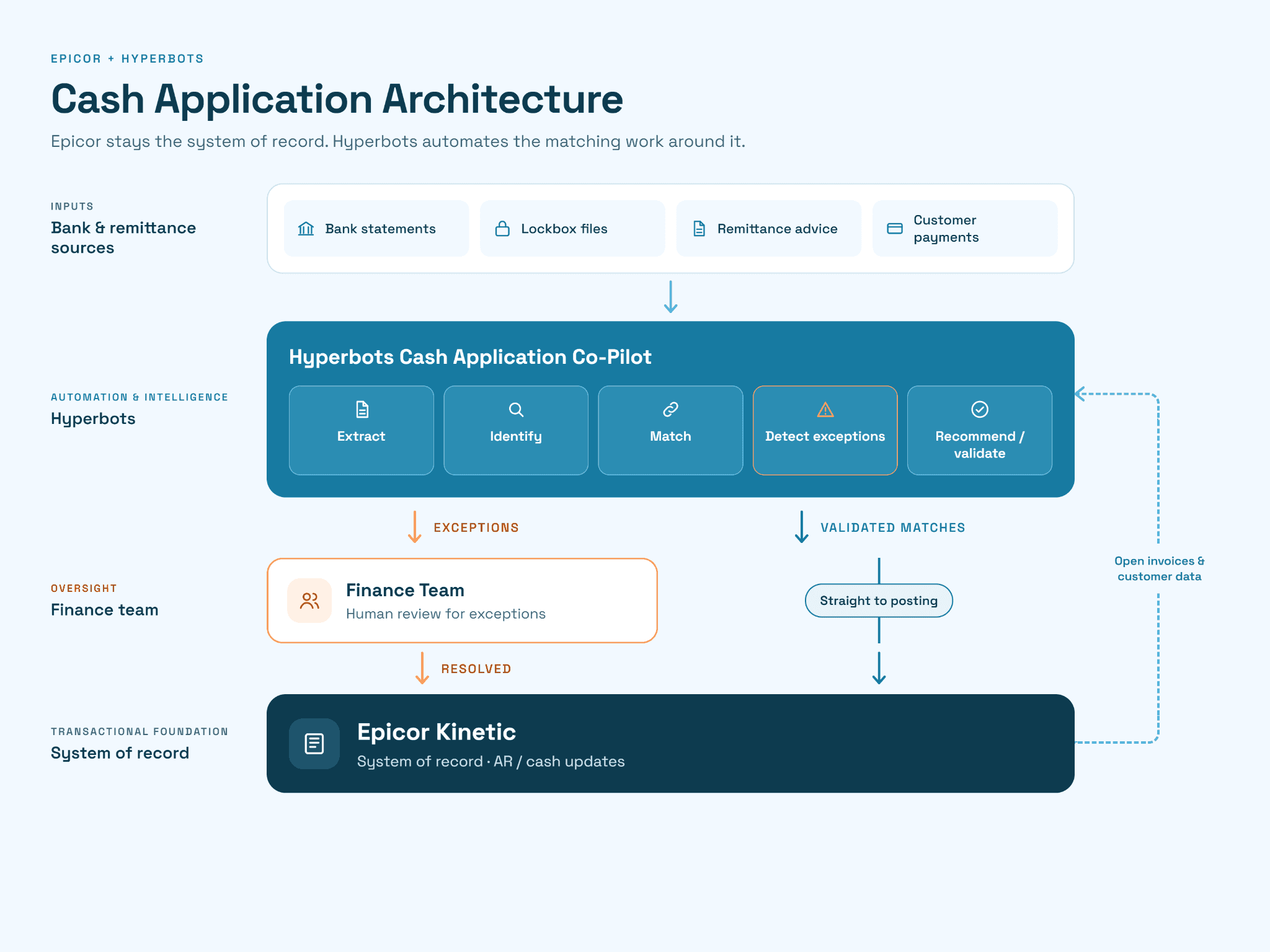
For organizations receiving a high volume of remittances, the biggest opportunity is usually not replacing Epicor's cash receipt functionality. It is automating the interpretation and matching work around it, which is the way AI complements ERP systems rather than competing with them.
The Hyperbots Cash Application Co-Pilot is designed for that layer. It brings together bank statements, lockbox files, remittance advice, customer payments, invoices, credits, deductions, and unapplied cash. It then uses AI-driven matching and exception handling to determine how payments should be applied.
The workflow sits around Epicor like this:
Epicor Kinetic: system of record for customer, invoice, and receivables data
↓
Hyperbots Cash Application Co-Pilot: remittance extraction, payment matching, exception handling
↓
Validated cash application
↓
Epicor Kinetic: posting and AR updates
Epicor remains the place where the receivables transaction is recorded. Through its integration with Epicor ERP, Hyperbots adds an intelligence and execution layer around the matching work.
In practice, Hyperbots can process remittance information even when it arrives through email or other documents. It matches using multiple signals, including invoice numbers, amounts, dates, PO references, and customer payment history. It also identifies short payments, deductions, overpayments, and unidentified cash for exception handling.
Go back to the $48,500 payment with a $10,000 gap. Amounts, dates, PO references, and payment history are the same signals a finance user would otherwise check by hand to find where that balance belongs. Automating those checks means every payment gets them. Anything that still doesn't reconcile is raised as an exception instead of being discovered later in the unapplied cash balance.
When Should You Automate Remittance Processing?
Not every team needs to. Manual processing can remain practical when payment volumes are low and remittance information is consistently clean.
Automation becomes more relevant when finance teams regularly encounter:
Large numbers of customer payments
Remittances arriving through multiple channels
One payment covering many invoices
Frequent short payments or deductions
High unapplied cash balances
Manual spreadsheet matching
Repetitive invoice lookup
Significant time spent reading remittance emails
Multiple entities or currencies
A growing backlog of unmatched payments
The useful question isn't whether Epicor can accept the payment. It can. The question is how much manual work is required to determine where that payment belongs before it can be posted confidently. Teams weighing that effort against volume can put numbers to it with a cash application ROI calculator.
Best Practices for Remittance Processing in Epicor
Validate the Customer First
Don't apply a payment to an account based solely on a name similarity or an incomplete reference.
Reconcile Remittance to Payment
The listed invoices and amounts should explain the cash received, or the difference should have a documented reason.
Review Exceptions Separately
Short payments, deductions, overpayments, and unidentified cash shouldn't be hidden simply to reduce unapplied balances.
Keep Supporting Information
The remittance and related payment references should remain traceable to the cash receipt for reconciliation and audit.
Automate Where Interpretation Is the Bottleneck
Sometimes the team spends more time reading, extracting, matching, and researching remittances than posting the underlying cash. When that happens, the manual work is a strong candidate for automation.
FAQ
How do I add remittance advice to Epicor?
In the Cash Matching workflow, select the customer and enter the payment through the cash posting entry. Then associate the remittance information with it so the system can use it during invoice matching. Epicor training material describes remittance-aware cash matching that can automatically match the payment to the referenced invoice. Exact screens vary by release and configuration.
Does Epicor automatically match invoices from remittance advice?
Epicor's documented cash matching workflow can use remittance information to match payments to invoices automatically when the relevant invoice information is available. Where it isn't, training material describes alternatives such as selecting invoices manually.
What happens if the remittance advice is incomplete?
The payment may need manual investigation. The finance team may have to confirm the customer, search open invoices, and investigate short payments or deductions. It then decides how any remaining amount should be treated under company policy.
Can Epicor process payments without remittance advice?
Yes, the payment can still be recorded. Without sufficient remittance information, though, the finance team may need to apply it manually. It may also leave part of the amount unapplied until the intended invoices are identified.
Can AI automate Epicor cash application?
AI can automate parts of the workflow around Epicor cash receipts. That includes reading remittances, matching payments to invoices, identifying exceptions, and preparing or posting validated applications. Hyperbots Cash Application Co-Pilot is designed for these tasks, with ambiguous cases left to the finance team.
Epicor Cash Application Starts With Knowing Where the Payment Belongs
Epicor handles the transaction. The bigger operational challenge is determining where each payment belongs and resolving the exceptions around it.
See How Automated Cash Application Can Work Alongside Epicor Kinetic
See how remittance extraction, payment matching, exception handling, and validated ERP updates can fit into your existing Epicor process. Your finance team stays in control of the decisions that need judgment.

