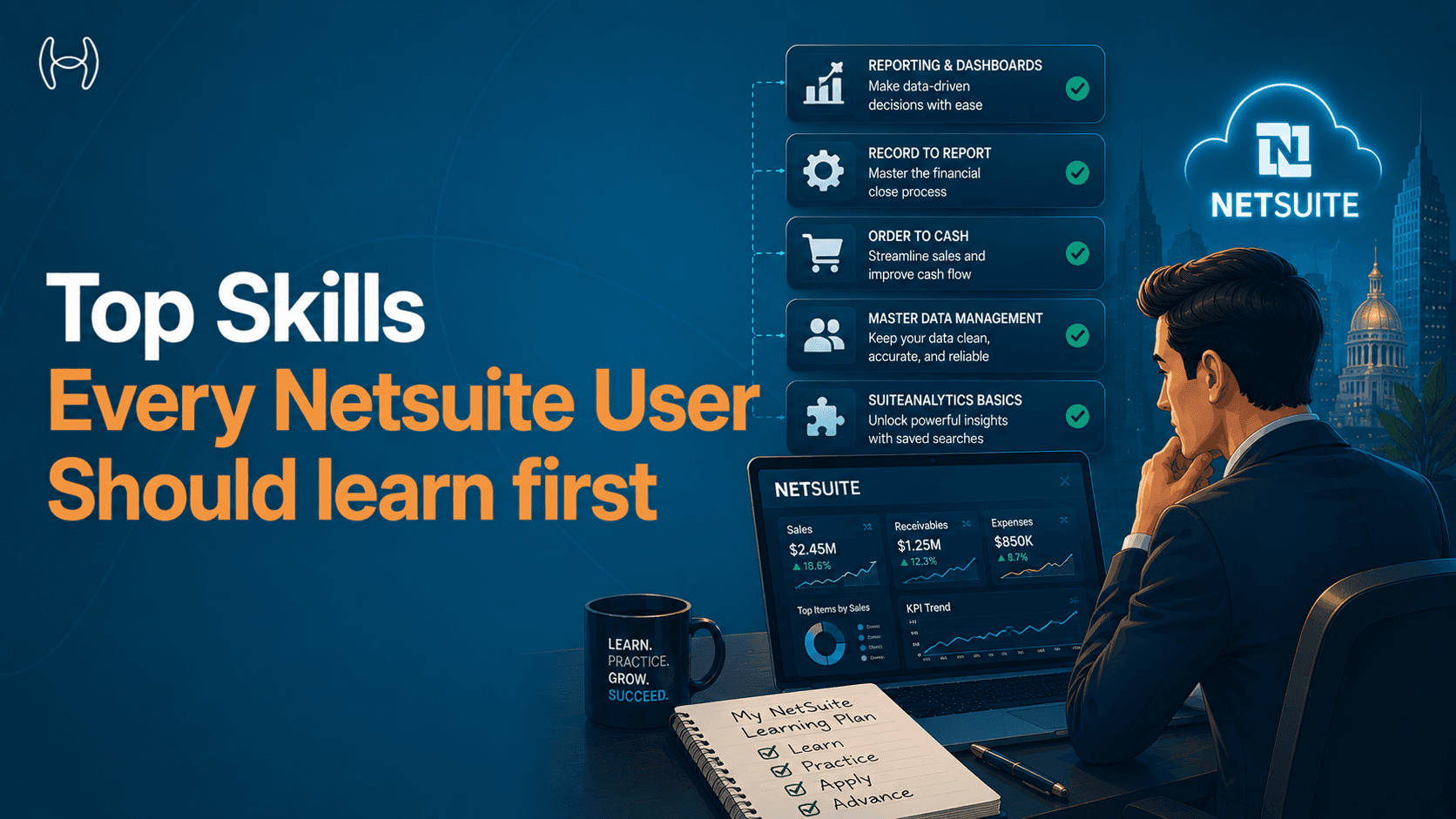
Top Skills Every NetSuite User Should Learn First
Starting with NetSuite can feel overwhelming. The platform has dozens of modules, hundreds of menu options, and enough settings to keep an admin busy for months. If you try to learn everything at once, you will learn very little of it well.
The good news is that most day-to-day NetSuite work relies on a surprisingly small set of core skills. Get those right first, and everything else becomes easier to pick up. Skip them, and you will find yourself lost even in basic tasks.
This blog is for new NetSuite users, team leads onboarding staff, and anyone who wants a clear starting point instead of an overwhelming course list. It explains which skills matter most, why, and in what order to approach them. For a complete training plan with role-based paths and 30-60-90 day blueprints, the NetSuite training guide from basics to mastery covers the full picture.
Why Learning the Right Skills First Matters
Most new NetSuite users make the same mistake. They try to understand every feature they might ever need before they have used the system for real work. The result is shallow knowledge across too many areas, and confidence in none of them.
NetSuite is a system you learn by doing. The skills that matter most are the ones you use every single day: finding records, understanding what you are looking at, entering data correctly, and running a transaction from start to finish. Once those are solid, the advanced features make sense because you understand the foundation they sit on.
Learning the right skills in the right order also reduces errors. A user who understands what a purchase order is and why it exists will make fewer mistakes creating one than a user who was just shown which buttons to click.
The Three Levels: Foundational, Intermediate, and Advanced
Think of NetSuite skills in three layers. Foundational skills are what every user needs regardless of their role. Intermediate skills apply to specific job functions. Advanced skills are for power users, admins, and analysts who need to go deeper.
Most new users should spend their first few weeks entirely on foundational skills before touching anything else.
Foundational Skills: What Every NetSuite User Needs
1. Navigating the NetSuite Interface
NetSuite's interface is made up of a navigation bar at the top, a home dashboard, and individual record pages. Before anything else, a new user needs to understand how to move around.
The key things to learn here are:
How to use the global search bar to find any record quickly. This is the fastest way to navigate and most experienced users rely on it constantly.
How the menu bar is organised by function: Transactions, Lists, Reports, Setup.
How to move between records. For example, clicking a vendor name on an invoice opens the vendor record. Understanding how records link to each other helps you navigate naturally rather than hunting through menus.
How to use breadcrumbs to go back to where you came from without losing your place.
This sounds basic but spending an hour just clicking around the system, exploring menus, and practising the search bar saves significant frustration later.
2. Understanding Dashboards and Reports
The NetSuite home dashboard is the first thing you see when you log in. It shows portlets: small panels that display reminders, recent activity, saved searches, and key metrics relevant to your role.
New users often ignore the dashboard and go straight to the menus. That is a mistake. The dashboard is designed to surface what you need to act on right now. Learning to read it properly means you start each day with a clear view of what requires your attention.
The basics to understand:
What each portlet on your dashboard shows and what action it is prompting.
How to access basic reports from the Reports menu.
What a saved search is. A saved search in NetSuite is a reusable filtered view of any type of record. For example, a saved search for all open purchase orders over a certain value. You do not need to build them from scratch at first, but you need to know how to run the ones that already exist for your role.
3. Working with Transactions
In NetSuite, a transaction is any record that moves money or goods. Purchase orders, vendor invoices, sales orders, customer invoices, and payments are all transactions.
Every user who touches finance or procurement needs to understand:
What the main transaction types are and how they relate to each other. A purchase order leads to a goods receipt, which leads to a vendor bill, which leads to a payment. Understanding this chain means you know where you are in a process at any moment.
How to open, read, and check the status of a transaction. NetSuite shows the status at the top of every record. "Pending Approval," "Open," "Billed," and "Closed" mean specific things about where that transaction is in its lifecycle.
How to navigate between related records. An invoice links to a PO. A payment links to an invoice. Learning to follow these links is how you trace what happened to any transaction.
For a detailed walkthrough of how purchase orders work in NetSuite specifically, the NetSuite purchase order process guide covers setup, approvals, and practical tips.
4. Basic Data Entry and Validation
NetSuite has mandatory fields, dropdown menus, and lookup fields. A lookup field means you search for and select a record rather than typing text freehand. Getting comfortable with these three input types covers most of what data entry in NetSuite involves.
The key habits to build:
Always check that mandatory fields are complete before saving. NetSuite will tell you which fields are missing, but developing the habit of checking before submitting avoids unnecessary error messages.
Use the lookup fields properly. If a field has a magnifying glass icon or a dropdown arrow, click it and search rather than typing a value. Free text in a lookup field does not link to the actual record and creates data quality problems downstream.
Save records in draft before finalising when you are unsure. Many NetSuite transactions can be saved and returned to before they are formally submitted or approved.
5. Search and Saved Search Basics
Knowing how to find what you need is more valuable than knowing where every menu item lives. NetSuite has two main search tools:
Global search is the search bar at the top of every screen. Type a vendor name, a PO number, an invoice amount, and NetSuite will surface matching records immediately. This is the fastest navigation tool in the system.
Saved searches are pre-configured filters that display a list of records matching certain criteria. Your finance team likely has saved searches set up already for common tasks like finding open invoices, overdue POs, or unmatched receipts. Learning to locate and run these saves significant time.
You do not need to know how to build saved searches from scratch at the beginning. You need to know they exist, where to find them, and how to run them.
Intermediate Skills: Adding Depth to Your Workflow
Once foundational skills are solid, the next layer covers the processes that connect different parts of the system.
Understanding Approval Workflows
NetSuite uses automated approval workflows for transactions like purchase orders and vendor invoices. Understanding how these work means you know what to do when a transaction needs approval, when it is stuck waiting, and who to escalate to if a delay is causing a problem.
The key things to know: what triggers an approval request, where to find the list of items waiting for your approval, and how to approve or reject with a comment.
Role-Based Responsibilities
NetSuite controls what each user can see and do through roles. Your role determines which menus appear, which records you can access, and which transactions you can create or edit.
Understanding your role means understanding your boundaries. If you cannot see a certain record or menu option, it is probably because your role does not have access to it, not because the record does not exist. Knowing this saves time and avoids confusion.
Reading Financial Data Correctly
At the intermediate level, users working with financial data need to understand the basics of how NetSuite organises accounts: the chart of accounts, GL codes, and how transactions post to the ledger. You do not need to be an accountant, but every financial transaction is coded to a specific account, and coding errors create problems that are hard to fix after the fact.
Advanced Skills: A Brief Overview
Advanced NetSuite skills are for users who need to go beyond their day-to-day workflow. These include:
Reporting and analytics. Building your own saved searches, creating custom reports, and setting up dashboards with KPIs relevant to your function. This requires understanding how NetSuite's data is structured and how to filter and group it meaningfully.
Customisation awareness. Understanding what has been customised in your specific NetSuite environment: custom fields, modified workflows, and added scripts. The complete guide to NetSuite features covers the full scope of what standard NetSuite looks like across modules, which is useful context before exploring what has been changed in your deployment.
NetSuite Skills at a Glance
Skill Level | Skills | Who Needs It |
Foundational | Navigation and global search | Every user |
Foundational | Dashboards and saved searches | Every user |
Foundational | Reading and working with transactions | Every user |
Foundational | Data entry and lookup fields | Every user |
Intermediate | Approval workflow navigation | Finance, procurement, operations |
Intermediate | Role-based access understanding | Every user |
Intermediate | Chart of accounts and GL coding basics | Finance and AP teams |
Advanced | Building saved searches and reports | Power users, controllers |
Advanced | Customisation awareness | Admins, power users |
Trying to learn everything before doing anything. NetSuite is too large to learn theoretically. Get into the sandbox and practice the core transactions as quickly as possible. Doing beats reading.
Ignoring the dashboard. New users go straight to menus and miss the information the dashboard surfaces. The dashboard is the fastest way to understand what needs attention right now.
Using free text in lookup fields. Typing a vendor name instead of searching for and selecting the record creates orphaned data that does not link back to the vendor master. Use the search icon every time.
Not understanding transaction status. Seeing a PO and not knowing whether it is pending approval, open, or already billed leads to errors like entering a duplicate transaction.
Skipping saved searches. Most teams have saved searches set up for common tasks. Not using them means running the same manual searches repeatedly when a single click would show the same result.
Assuming the system will catch every mistake. NetSuite has validation rules but they do not catch everything. A transaction can be saved with incorrect GL coding, a wrong vendor, or a mismatched quantity without the system stopping you. Checking before submitting has to come from the user.
How Hyperbots Changes What Users Need to Focus On
Traditional NetSuite use requires users to perform a lot of manual tasks. Entering invoice data. Coding expenses to the correct GL account. Matching invoices to purchase orders line by line. Running searches to find exceptions. These tasks are repetitive, time-consuming, and a significant source of human error.
Hyperbots change this. The Invoice Processing Co-Pilot reads and processes invoices automatically, extracting data at 99.8% accuracy and handling up to 80% of invoices end to end without human input. The Procurement Co-Pilot automates purchase requisition creation and approval routing, reducing the time from a demand signal to an approved PO from days to under 5 minutes.
When the repetitive processing is handled automatically, NetSuite users shift their focus to what actually requires their judgment: reviewing exceptions, approving decisions, analysing data, and managing supplier relationships. This is a better use of skilled finance team members, and it is a faster path to meaningful productivity for new users who no longer have to master data entry before they can contribute.
With AI automation running on top of NetSuite, the foundational skills matter more, not less. A user who understands what a saved search shows, how to read a transaction status, and how to navigate to a vendor record is well-equipped to work with an automated workflow. They are just not doing the manual keying anymore. See it in action with a demo or start your free trial today.
The Bottom Line
Learning NetSuite does not have to feel overwhelming. Start with navigation, dashboards, transactions, data entry, and search. Get those right before anything else. Then build through workflow understanding, role awareness, and financial data basics. Advanced skills can wait until the foundation is solid.
The users who become confident fastest are not the ones who studied the most before using it. They are the ones who got into the system early, learned by doing, and focused on the skills their daily work actually required.
FAQs
What is the most important skill to learn first in NetSuite? Navigation and global search. If you can find any record in the system quickly, every other task becomes easier. The search bar and breadcrumb navigation are the tools experienced users rely on most.
How long does it take to get comfortable with NetSuite basics? Most users develop confidence in foundational skills within two to four weeks of daily use. The 30-60-90 day training approach in the NetSuite training guide gives a structured path for getting from basics to independent working.
Do I need to understand accounting to use NetSuite? Not for all roles. Warehouse, operations, and procurement users can work effectively without deep accounting knowledge. Finance and AP users need a basic understanding of how transactions post to accounts, but do not need to be accountants to be productive in NetSuite.
What is a saved search and why does it matter? A saved search is a pre-configured filtered view of records in NetSuite. For example, all open purchase orders from a specific vendor, or all invoices that have not been matched to a PO. They save significant time compared to manually filtering data every time you need the same view.
What is the difference between a role and a user in NetSuite? A user is a person with login access. A role is the set of permissions assigned to that user, controlling what records they can see and what actions they can take. The same person can have different roles in different contexts, and understanding your role helps you understand why certain options are or are not visible to you.