Where to Find the 1099 Report List in Epicor, and How to Handle Other AP Edge Cases in Kinetic
Epicor 1099 Report, Debit Memos, T&E, and ERS Orders Explained
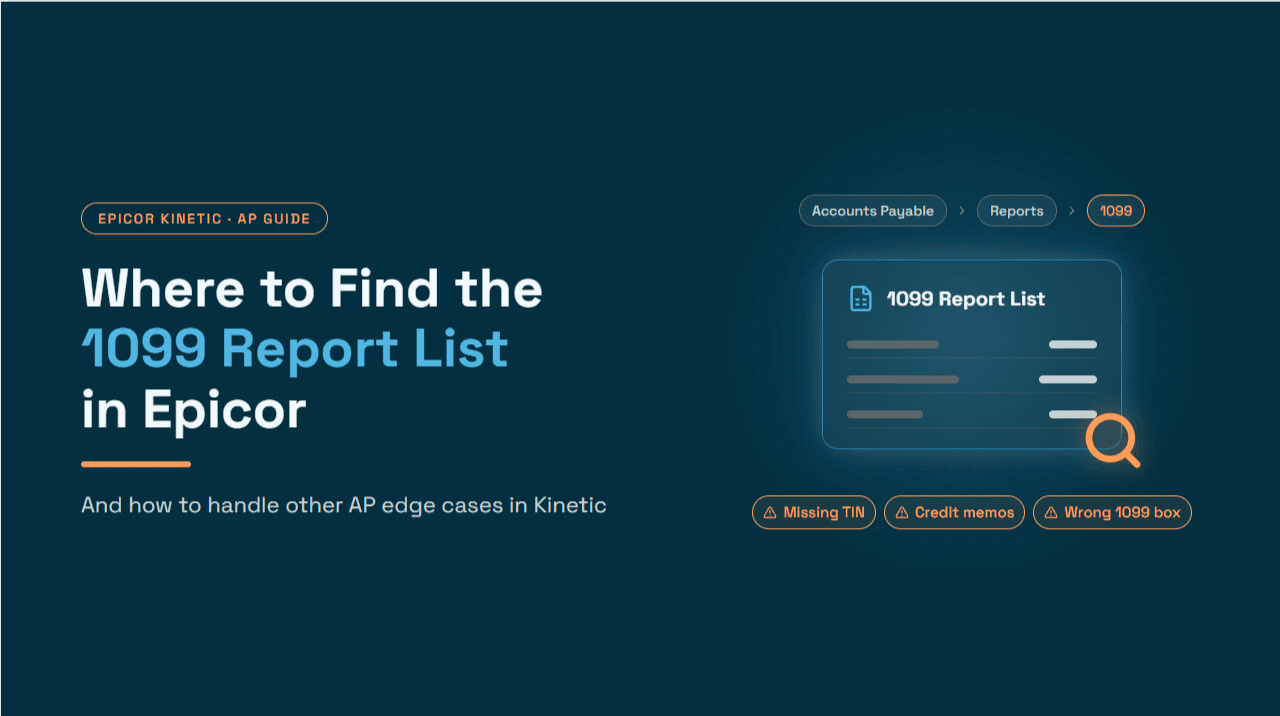
Every January, the same question lands in Epicor user forums and internal IT tickets: where did the 1099 report go? The report exists, but whether you can see it depends on licensing and one-time setup that most finance teams configured years ago and have since forgotten.
This article gives the short answer first, then walks through the setup behind it. It also covers three long-tail questions that sit inside the broader Kinetic procure-to-pay workflow: clearing debit memos, stopping Time & Expense entries from posting, and understanding ERS orders.
A quick note on scope: Epicor menu paths shift between releases (Epicor ERP 10.x, Kinetic 2021.x, 2022.x and later) and with personalized menus. The fastest way to locate any program in Kinetic is the menu search. Where a path is given below, confirm it against your own release.
The short answer: where the 1099 report lives in Epicor
Where the 1099 report sits depends on whether your company has US Country Specific Functionality (CSF) licensed and enabled.
With US CSF enabled (the standard 1099 workflow)
When the US CSF is installed, Epicor adds dedicated 1099 functionality across the finance module. The programs you will use at year-end are:
Program | What it does |
1099 Report | Lists 1099-reportable payments by supplier and box. Run it with Details and Include All Records checked to see transaction-level backup. |
1099 generation (regenerate / recalculate) | Builds or rebuilds the 1099 data for the tax year after you correct supplier or invoice coding. |
Print 1099 Forms US | Prints the forms (e.g., 1099-NEC, 1099-MISC) from the generated data. |
1099 electronic file | Produces the file for electronic filing, depending on your release. |
In Kinetic, type "1099" in the menu search to surface all of these at once. That is quicker than browsing the Accounts Payable menu folders, whose layout varies by version.
Why the 1099 report is missing or empty: the setup chain
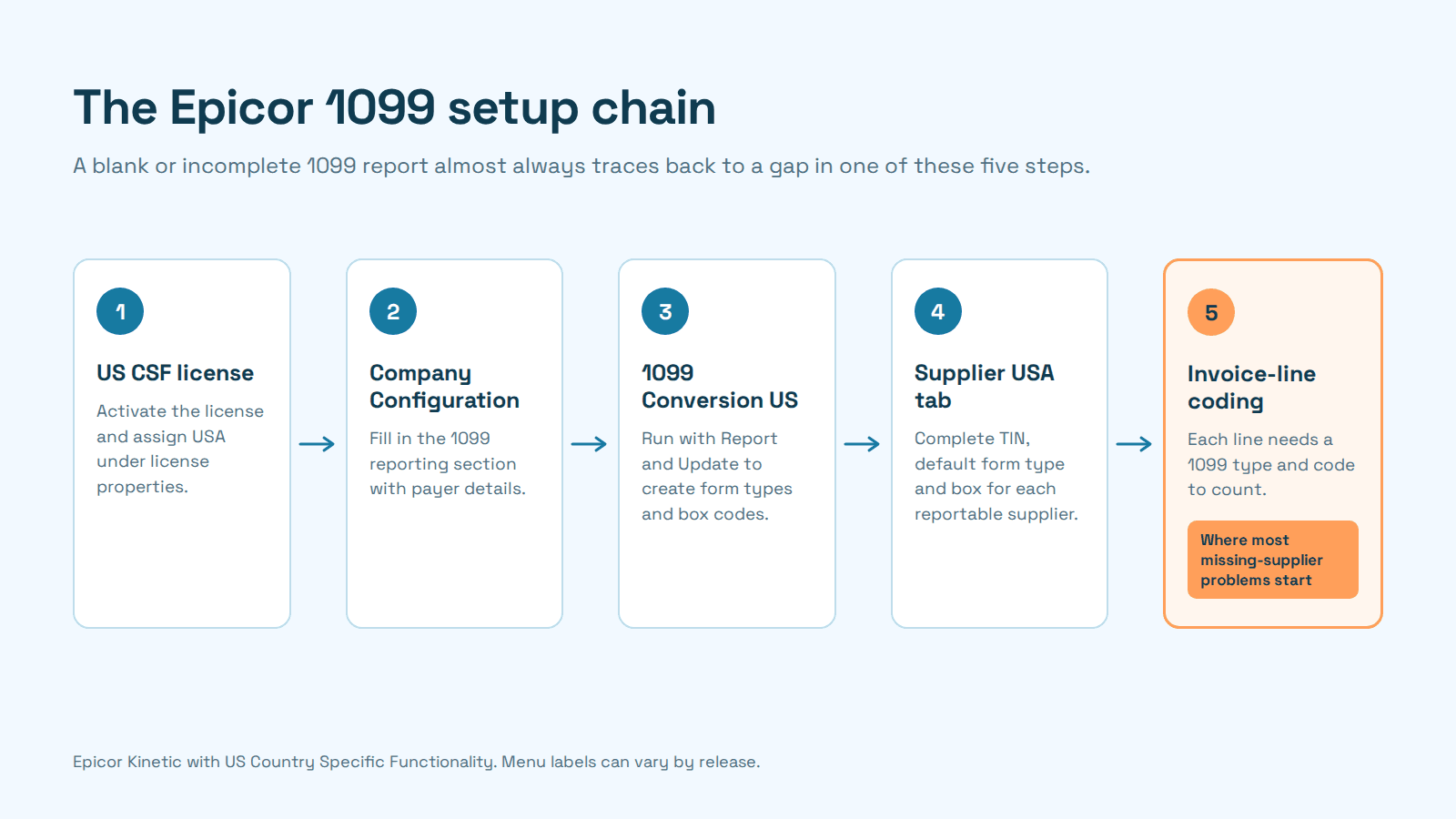
A 1099 report that is blank, incomplete, or missing from the menu is almost always a setup gap somewhere in this chain:
US CSF license assigned. The license must be activated and USA must be assigned under the license properties. Activating without assigning the country is a common miss.
Company Configuration. Under the Finance module settings there is a 1099 reporting section. It only appears once the USA localization is active, and it holds the payer information.
1099 Conversion US. Run from System Management > Rebuild Processes > Finance with the Report and Update option. It creates the default 1099 form types and box codes. It also adds the USA tabs to Company Configuration, Supplier Maintenance, AP Invoice Entry and Posted Invoice Update.
Supplier setup. Each reportable supplier needs its 1099 settings completed on the supplier's USA tab: TIN, default form type and box.
Invoice-line coding. 1099 amounts are driven by the 1099 type and code on invoice lines, not only by the supplier flag. This is the step that most often explains a "missing" supplier.
Common 1099 report problems and fixes
Symptom | Likely cause | Fix |
Supplier doesn't appear on the 1099 report even though the supplier is flagged | Invoices were entered before the supplier's 1099 settings were corrected, so the invoice lines carry no 1099 code | In Posted Invoice Update, open the invoice Lines and update the 1099 type and code on the USA tab for each affected line. Then regenerate. |
1099 report totals don't match printed form totals | Stale generated data, or a manually created form type that doesn't behave like a system form type | Run regenerate/recalculate. Check the form type's System flag and box definitions. Escalate to Epicor support if totals still diverge. |
A form type (e.g., 1099-NEC) is missing | Form types weren't created or updated after an upgrade | Rerun 1099 Conversion US with Report and Update and review the log. Test in a non-production environment first. |
Forms print in an outdated IRS layout | You're on an older release or update without the form changes | Apply the relevant Epicor update, or use third-party 1099 filing software for the current year. |
No 1099 menu items at all | US CSF not licensed, or USA not assigned | Complete steps 1 to 3 above. |
A practical control is to run the 1099 Report with Details in December, not January. It surfaces uncoded invoice lines while there's still time to fix them, before the late-January 1099-NEC deadline.
How to clear a debit memo in Epicor
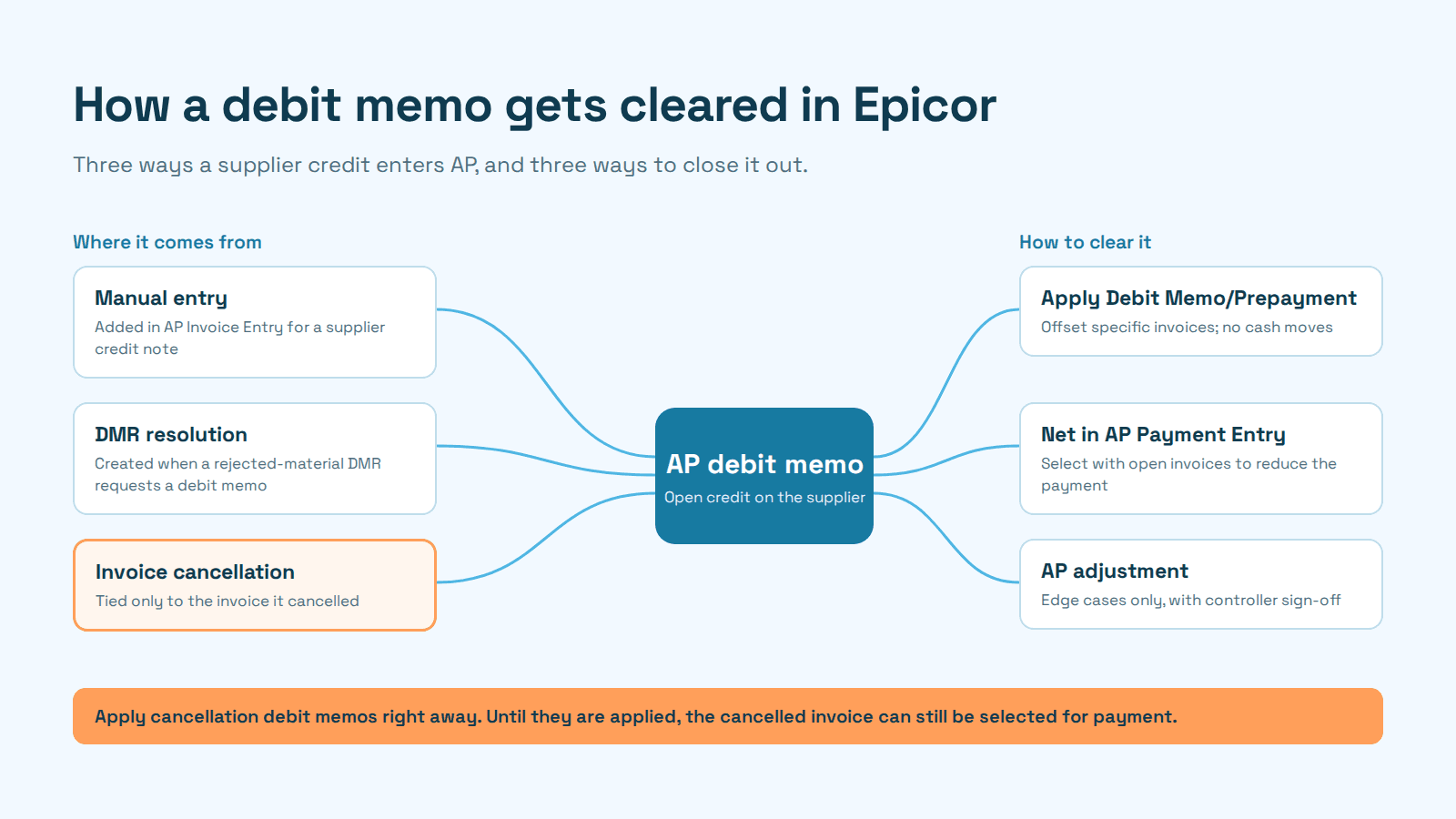
Terminology matters first. In Epicor AP, a credit you receive from a supplier is recorded as a debit memo, because it debits your payables balance. Many teams call this a supplier credit note or AP credit memo. Knowing Epicor's term helps when you search the menu or the help.
Where debit memos come from
Manually in AP Invoice Entry, by adding a new debit memo for a supplier credit.
From a DMR (Discrepant Material Report), when a rejected-material resolution requests a debit memo. These are pulled in through AP Invoice Entry. If one doesn't show up, check that the DMR's reject action actually selected "request debit memo."
From cancelling an invoice. Cancelling a posted AP invoice creates a debit memo tied to that invoice.
Three ways to clear a debit memo
Apply it with Apply Debit Memo/Prepayment. This is the cleanest route. Open the debit memo, select the invoice or invoices it should offset, and apply it. The unapplied amount drops to zero and both documents close without any cash moving. The same screen clears prepayments against their final invoices.
Net it in AP Payment Entry. Select the debit memo alongside open invoices for the same supplier in a payment run, and the payment is reduced by the memo. This works when the supplier's open invoices exceed the debit memo.
Use an AP adjustment (edge cases only). Sometimes a debit memo is larger than any open invoices and the supplier won't issue new ones. In that case some teams adjust the balances to a clearing account and document the reference. Agree this with your controller, since it bypasses the normal application trail.
Errors you may hit
"Active revision for transaction type AP Apply Debit Memo was not found." The GL transaction type used for applying debit memos is blocked, often after an upgrade. Set the active revision in GL Transaction Types.
"This invoice was not cancelled by this Debit Memo." A cancellation debit memo can only be applied to the invoice it cancelled. For a different invoice, create a standard debit memo.
A cancelled invoice still gets paid. If the cancellation debit memo is never applied, the original invoice can still be selected for payment. Make applying cancellation debit memos part of the cancellation procedure.
Treating debit memo application as a weekly task rather than a month-end cleanup is one of the simpler habits in effective accounts payable management. It keeps open credits from distorting the aging.
How to stop Time & Expense from posting in Epicor
Time & Expense (T&E) entries don't post to the general ledger the moment they're approved. Labor and related activity reach the GL through the Capture COS/WIP Activity process and its subsequent posting. How you stop an entry from posting depends on which side of that capture it's on.
Before capture: you can still stop it
Keep it out of approved status, or recall it. Entries that haven't been approved, or that can still be recalled from approval, can be corrected or deleted in Time and Expense Entry before capture picks them up.
Control the capture date range. Capture COS/WIP runs for a date range, and transactions outside it aren't captured in that run.
Use the Earliest Apply Date (EAD). The EAD has a detail setting for all transactions and per-module settings. Moving it forward blocks new entries dated into a closed period.
Restrict who runs capture. If capture runs frequently (some teams run it weekly), entries lock sooner, so align the schedule with your approval cutoffs.
After capture: you can't stop it, only correct it
Once Capture COS/WIP has run, the related T&E entries are locked and can't be recalled. Correcting them takes two steps:
A journal entry to correct the GL.
Job Adjustment to correct job actuals, so production and job-cost reporting matches the ledger.
Offsetting negative entries are sometimes possible, but only when every attribute matches exactly: job, operation, indirect code, resource and resource group. The best way to stop T&E from posting is to catch it before capture, which is a cutoff-discipline problem more than a software one.
What is an ERS order in Epicor?
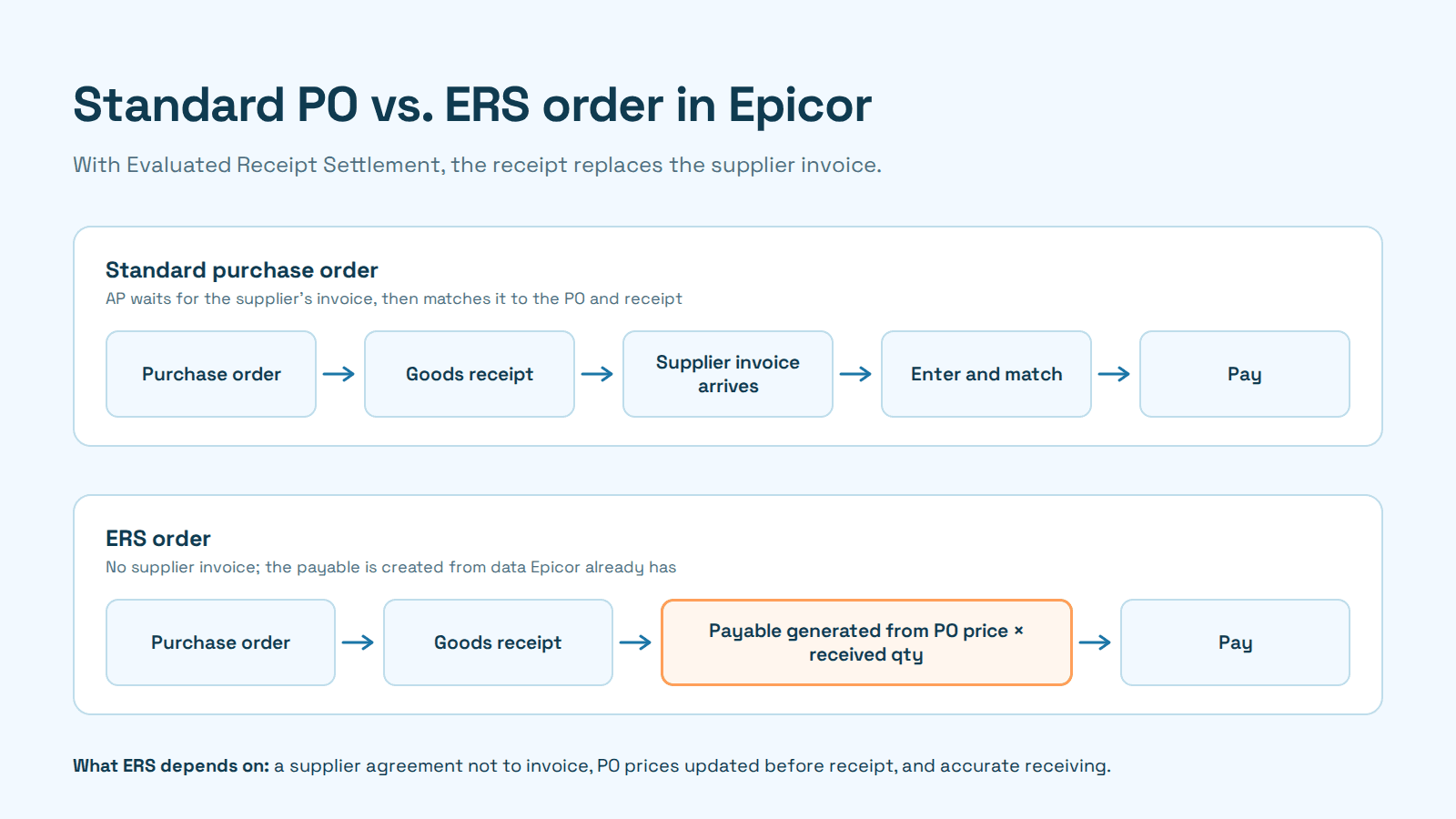
ERS stands for Evaluated Receipt Settlement. An ERS order is a purchase order set up so that the buyer generates the payable from the PO and the receipt, instead of waiting for the supplier to send an invoice. If the PO price is agreed and the receipt quantity is accurate, a supplier invoice just repeats information you already have.
In Epicor, ERS is enabled for eligible suppliers and carried onto their purchase orders. Receipts against those POs then feed invoice creation through an ERS process instead of manual AP Invoice Entry. Field and process labels vary by release, so search "ERS" in the Kinetic menu to confirm the exact programs in your environment.
ERS works well for stable, high-volume supplier relationships with fixed pricing. It needs three things to go right:
A supplier agreement. The supplier must agree not to invoice ERS orders. If they invoice anyway, you risk entering a duplicate on top of the ERS-generated invoice.
Accurate POs. The PO price becomes the payment price, so price changes must be updated on the PO before receipt.
Accurate receipts. Receiving errors become payment errors directly, and returns need a debit memo to reverse what was settled.
ERS is essentially the opposite of PO, receipt and invoice matching. Instead of reconciling three documents, you trust two and skip the third. If most of your suppliers still need 2-way or 3-way matching, introduce ERS gradually, starting with suppliers whose invoices already match POs cleanly every time.
Where automation helps: exceptions, audit trails and year-end 1099 backup
Three of the four topics above share a pattern:
An uncoded 1099 invoice line.
An unapplied debit memo.
A supplier invoice arriving against an ERS order.
In each case, standard invoice entry worked, but the document needed a judgment call that nobody made at the time. These items don't fail loudly. They surface weeks later as a supplier missing from the 1099 report, an open credit on the aging, or a possible duplicate payment. They are also exactly the kinds of constraints that keep invoices from flowing straight through.
The 1099 case has a second problem: proving the numbers. When an auditor, a supplier disputing a form, or your own controller asks why a vendor's total is what it is, the answer lives in invoice-line coding decisions made months earlier. Often nobody recorded who made them or why. Epicor produces the 1099 report, but the report is only as defensible as the trail behind each line that feeds it.
This is where an automation layer on top of Epicor earns its place. It doesn't replace Epicor's AP module or its 1099 reporting. It catches exceptions when the document first arrives and records every decision made about it.
How Hyperbots fits
Hyperbots is one example of this approach. Its Epicor integration uses a pre-built connector that supports Epicor Kinetic. The connector works with invoices, purchase orders, vendor records and general ledger transactions, with read/write access to relevant Epicor data and custom fields. It runs on Epicor REST v2, with Service Connect supported for older builds and on-premise environments. Epicor remains the system of record; Hyperbots handles capture, validation, matching and routing before documents post.
For the edge cases in this article, that looks like this:
An audit trail behind year-end numbers. The Invoice Processing Co-Pilot keeps audit trails that log every AI and user action on an invoice. When invoice data, including custom ERP fields, is written to Epicor through the connector, the history of how each invoice was coded and approved is traceable. That is the backup you want when a 1099 total is questioned. It fits a broader point about how well-implemented AI automation makes audits easier: consistent, logged decisions replace reconstructed ones.
Cleaner vendor data from the start. Many 1099 problems start with a supplier record set up incompletely. The Vendor Management Co-Pilot covers structured vendor onboarding with document collection and validation, plus vendor identity verification. Its own audit logging covers vendor-related actions and compliance checks.
Supplier credits routed, not buried. Supplier credit notes are recognized as credits when they arrive and routed for debit memo handling against the right supplier, instead of sitting in a shared inbox until the aging looks wrong.
ERS and duplicate protection. Invoices against PO-backed orders are checked against Epicor PO and receipt data through 3-way matching. Duplicate invoice detection adds a safeguard when a supplier sends an invoice for something that should settle through ERS.
People stay in control of exceptions. Edge cases are routed to reviewers through human-in-the-loop oversight rather than forced through automatically. Because the models are pre-trained for finance workflows, teams aren't building extraction rules from scratch before seeing results.
A useful way to judge any automation is how much work ends up in the exception queue. One Epicor customer has publicly described an 80% reduction in AP data entry and roughly 80% straight-through invoice processing. That customer-reported result leaves a minority of invoices for people, which is exactly where debit memos, 1099 coding questions and ERS conflicts live. Results depend on invoice mix and supplier behavior, so treat it as one company's outcome, not a benchmark.
Time & Expense posting is deliberately left out of this section. It's a labor and COS/WIP cutoff question outside invoice processing, and Epicor's own controls described above are the right tools for it.
Getting 1099 reporting, debit memos and ERS orders right in Epicor Kinetic
The 1099 report list in Epicor is easy to find once the groundwork is in place. With U.S. Country Specific Functionality enabled, Epicor provides 1099 reporting and form functionality as part of its U.S. financial capabilities.
When the report is missing or the results are incorrect, start by checking the underlying 1099 configuration, supplier information, and invoice-line coding. Fixing these issues before year-end is far easier than correcting transactions after posting. Keeping a clear record of how each applicable transaction was coded also makes the resulting 1099 totals easier to review and defend.
The other edge cases follow the same logic:
Clear debit memos promptly with Apply Debit Memo/Prepayment, and never leave a cancellation debit memo unapplied.
Stop Time & Expense from posting by controlling approval, capture timing and the Earliest Apply Date. After Capture COS/WIP, only journal entries and Job Adjustment can correct it.
Use ERS orders where POs and receipts are reliable enough to replace the supplier invoice.
Each is a small process decision. Together they determine how much of your AP team's time goes to exceptions rather than routine processing.
Frequently asked questions
1. Where is the 1099 report in Epicor Kinetic?
- If US Country Specific Functionality is enabled, search "1099" in the Kinetic menu. That surfaces the 1099 Report, the generation process and Print 1099 Forms US. If nothing appears, the US CSF is likely not licensed or USA hasn't been assigned under the license properties. In that case, the Supplier Payment report under Accounts Payable reports is the alternative payment listing.
2. Why is a supplier missing from my Epicor 1099 report?
- Usually the supplier's invoices were entered before its 1099 settings were set up, so the invoice lines carry no 1099 type or code. Updating the supplier record alone doesn't fix historical invoices. You need to update the invoice lines on the USA tab in Posted Invoice Update, then regenerate the 1099 data.
3. What does the 1099 Conversion US process do, and is it safe to rerun?
- It sets up the default 1099 form types and box codes and adds the USA tabs to the relevant finance screens. Teams have rerun it after upgrades to recover missing form types. Run it first in a test environment with Report and Update, review the conversion log, and only then run it in production.
4. How can I back up my Epicor 1099 totals for an audit?
- Start with the 1099 Report run with Details and Include All Records, which gives transaction-level backup by supplier and box. The harder part is showing why each invoice line was coded as it was. That depends on having a record of who entered or changed the coding and when. An invoice-processing layer that logs every AI and user action gives you that history. Otherwise, document changes made in Posted Invoice Update as you make them.
5. How do I clear a debit memo in Epicor if the supplier has no open invoices?
- If new invoices are expected, leave the debit memo open and apply it or net it in a payment when they arrive. If not, options include requesting a refund from the supplier or an AP adjustment to a clearing account with a documented reference. Agree the approach with your controller, because an adjustment bypasses the standard application trail.
6. Can I reverse Time & Expense entries after Capture COS/WIP has run?
- Not by editing or recalling them; captured entries are locked. Corrections are made with a journal entry for the GL and Job Adjustment for job actuals. Offsetting negative entries work only when every attribute matches exactly. To prevent this, tighten approval cutoffs and use the Earliest Apply Date to close periods.
7. What is the difference between an ERS order and a normal purchase order in Epicor?
- With a normal PO, the supplier sends an invoice that AP enters and matches against the PO and receipt. With an ERS order, the payable is generated from the PO price and received quantity, and the supplier doesn't invoice. ERS removes invoice entry and matching for that supplier, but depends on accurate PO pricing and receiving.
8. What happens if a supplier sends an invoice for an ERS order?
- You risk paying twice: once through the ERS-generated invoice and again if the supplier's invoice is entered manually. Make sure the supplier agreement covers invoicing, and check incoming supplier invoices against ERS status and existing payables before entry. Duplicate detection in an invoice-processing layer that reads PO data from Epicor is one way to catch this automatically.