How to Apply Multiple POs to One Invoice in Epicor
A practical guide to multi-PO invoice matching in Epicor Kinetic, from manual application to AI-powered automation.
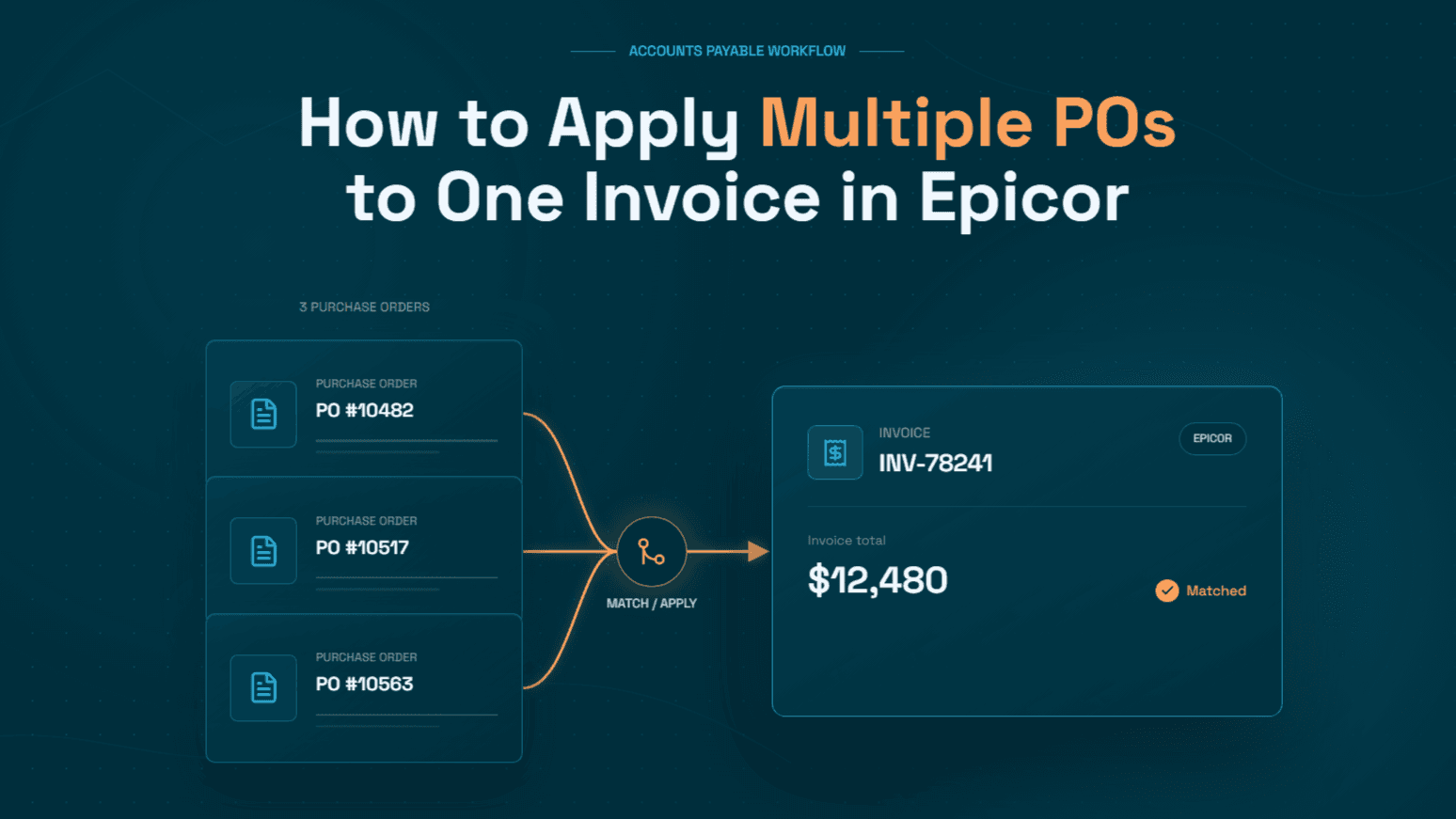
Picture a typical month-end in an Epicor Kinetic shop. One supplier shipped against three separate purchase orders over two weeks. Receiving logged three packing slips. Then the supplier sends a single consolidated invoice with fourteen lines, two freight charges, and PO numbers scattered between the header and the line descriptions. Someone in AP now has to split that invoice across the right POs and receipts, line by line, before anything can post.
Consolidated supplier billing is one of several places where Kinetic's procure-to-pay cycle leaves AP doing work the ERP can't finish on its own, and it's the one that eats the most time at month-end. This post covers the mechanics: how POs and receipts need to exist before AP can use them, the exact steps to apply multiple POs to one invoice in AP Invoice Entry, the errors that usually block the process, and how AI can take the matching work off your team's plate. This post covers the specific mechanics: how POs and receipts need to exist before AP can use them, the exact steps to apply multiple POs to one invoice in AP Invoice Entry, the errors that usually block the process, and how AI can take the matching work off your team's plate.
Why One Supplier Invoice Often Covers Several Purchase Orders

Multi-PO invoices usually come from normal supplier billing habits, not from supplier errors. Distributors and component suppliers often send one invoice per billing cycle rather than one per order. Service vendors bill monthly against several work orders. Manufacturers that release weekly against blanket purchase orders get one invoice for several releases. And when buyers split a requirement across POs for budget or approval reasons, the supplier still sees one customer and bills once.
A single invoice for multiple purchase orders can be commercially valid, even though it creates more work for AP than a clean one-to-one match. The real risk starts when AP treats the invoice as one total instead of a set of line-level obligations. What matters is not whether the supplier combined the billing, but whether AP can match each invoice line to the correct PO line and receipt record before approval. In Epicor terms, every invoice line must tie back to a specific PO, PO line, release, and receipt. The matching strategy you apply across invoices, POs, and GRNs determines how much of that work is reliable.
Before AP Starts: Getting the POs and Receipts Right in Epicor
AP Invoice Entry can only pull what upstream teams have already recorded. Most "missing receipt" problems in AP start in purchasing or receiving, so it helps to understand both steps.
How to Enter a Purchase Order in Epicor
In Epicor Kinetic, purchase orders are created in Purchase Order Entry. You can open it from the Kinetic home page search bar, or through the classic menu path Material Management > Purchase Management > General Operations > Purchase Order Entry. Epicor describes Purchase Order Entry as the central program that controls purchasing activity, and each PO can contain multiple detail lines that indicate planned receipts to inventory, direct receipts to a sales order, or direct receipts to a manufacturing job.
The basic flow is:
Create a new PO and select the supplier. Terms, currency, purchase point, and buyer default from the supplier record.
Confirm the order date, ship-to location, and buyer.
Add lines with the part number (or a description for non-stock items), order quantity, unit of measure, and unit cost.
Review the releases on each line. Each release carries its own due date and quantity, which matters later when receipts arrive in pieces.
Mark the PO approved (or route it through buyer approval limits), then print or email it to the supplier.
For AP, the details that matter most here are clean units of measure and accurate unit prices. A PO written in cases and invoiced in eaches, or a PO priced before a supplier increase, turns into a variance at invoice time. Our step-by-step guide to making a purchase order covers field-level best practices that prevent these downstream issues.
Where Is Receipt Entry in Epicor?
Receipt Entry is where the warehouse records goods received against a PO. In Kinetic, the fastest way to find it is to type "Receipt Entry" in the home page search. In the classic menu structure, it sits under Material Management > Shipping/Receiving > General Operations > Receipt Entry. Warehouse staff using mobile devices can use the handheld PO Receipt program instead.
A standard receipt goes like this: create a new receipt, enter the supplier and the supplier's packing slip number, select the PO, then add lines individually or receive all open lines. Confirm the quantity actually arrived, the warehouse and bin, and the arrival date, then mark each line as received. An unposted or unreceived line will not show up for AP later.
Two points matter for multi-PO invoices. First, receipt quantities are what AP matches against. The invoice is not matched to the PO order quantity. Second, suppliers often ship more than one PO in a single box. Epicor users commonly receive multiple PO numbers on one packing slip from their suppliers, so a single receipt can already span several POs before the invoice arrives. Tracking each purchase order from creation to receipt keeps that visibility intact for AP.
Step-by-Step: How to Apply Multiple POs to One Invoice in Epicor Kinetic
Once receipts are recorded, the multi-PO work happens in AP Invoice Entry (Financial Management > Accounts Payable > General Operations > Invoice Entry). Invoices entered there update open purchase orders, shipping receipts, and General Ledger accounts, so accuracy at this step affects inventory costing, GRNI balances, and the GL. The key idea is that a single invoice header can hold receipt billing lines from any number of POs, as long as they belong to the same supplier.
Step 1: Create or select an invoice group
Epicor processes AP invoices in groups. Create a group with an apply date and fiscal period, or use your team's daily group. Many teams keep a separate "hold" group for problem invoices. One AP practitioner describes keeping a daily group plus a separate group for invoices that have a different PO price or an extra charge that the buyer needs to address.
Step 2: Create the invoice header
Enter the supplier, the supplier's invoice number, invoice date, and the invoice total exactly as printed. Terms and payment method default from the supplier or PO. Entering the total up front gives you a control figure: Epicor tracks the difference between the header amount and the sum of the lines, and that variance must be zero before the invoice is ready to post.
Step 3: Decide what goes in the header PO field
The header PO field is a convenience, not a restriction on the whole invoice. Entering a PO there fills in supplier defaults and focuses your first receipt search on that PO. For a multi-PO invoice, you can enter the first PO listed or leave the field blank and work at the line level. The receipt lines you add next determine which POs the invoice actually covers.
Step 4: Add receipt billing lines for the first PO
From the invoice lines area, add a new receipt line. Kinetic opens a selection list of uninvoiced receipts for the supplier, which you can filter by PO number or packing slip. Select every receipt line the invoice bills for on that PO and confirm. Epicor users describe the standard pattern as creating the group and header, then using "New Receipt Line" to bring in the receipts for that invoice.
Step 5: Repeat for each additional PO
Add another receipt line, change the filter to the next PO or packing slip, select its lines, and confirm. Continue until every PO referenced on the supplier invoice is represented. Work through the invoice in its own printed order so you can check off each line as you go.
Step 6: Reconcile quantities and unit costs line by line
Compare each Epicor line with the matching invoice line. Where the supplier billed a partial quantity, reduce the invoiced quantity on that line. Where the unit price differs from the PO, update the invoice unit cost so the line reflects what the supplier actually charged. Price differences then flow to the variance accounts your configuration defines, which is why they deserve buyer review before posting.
Step 7: Add freight, fees, and tax
Consolidated invoices often carry charges that belong to no single receipt, such as freight, fuel surcharges, and handling fees. Add these as miscellaneous charges at the header or line level, based on how your company allocates landed cost. Confirm that tax matches the invoice. Because of how these charges get allocated, tax treatment on consolidated invoices is a common source of overpayment.
Step 8: Confirm zero variance, review, and post
When the header total equals the sum of receipt lines, miscellaneous charges, and tax, the variance clears. Print the group edit list, review it, and post. Posting the entry group updates the AP information for each supplier referenced within the group. After posting, the invoice is scheduled for payment based on its terms.
Handling Partials, Price Variances, and Split Deliveries
The eight steps above assume a clean invoice. Real consolidated invoices rarely are, and three scenarios cause most of the rework:
Partial invoicing of a receipt: A supplier may bill 73 units of a 100-unit receipt now and the rest later. By default, Epicor may treat a receipt line as fully consumed once it is invoiced. One user who received 100 units and was invoiced in quantities of 73, 25, and 2 found that after the first invoice was entered, the packing slip could not be pulled up again for the second. The fix sits in Company Configuration. Epicor includes an "Allow Multiple Invoicing of Receipts" checkbox, which lets AP invoice the same receipt line more than once. Test it in a non-production environment first, because it changes how receipt lines close.
Price differences: When the invoice price differs from the PO, AP can change the line cost, but it should not make that decision alone. Set a tolerance, route anything above it to the buyer, and record the reason. Otherwise, as one team's experience shows, finance ends up asking receiving to modify receipts or POs so they match the invoicing that comes through, which damages the audit trail.
Split and merged lines: Suppliers sometimes put two PO lines on one invoice line, or split one PO line across several invoice lines. When an invoice merges lines, the options are manual line-level reconciliation by the buyer or asking the vendor to reissue the invoice broken out per PO line. Reissuing is the cleaner long-term fix when the same vendor merges lines habitually. Services invoices add another layer, which is why matching open-ended time-and-material services needs different rules than matching goods.
Common Errors When Applying Multiple POs to One Invoice in Epicor (and How to Fix Them)
Receipt lines don't appear in the selection list
This is the most common complaint. Check in this order: the receipt was never marked received; the receipt is already attached to another unposted invoice in some group; the receipt belongs to a different supplier, purchase point, or currency; or the receipt has already been fully invoiced and multiple invoicing is disabled. Occasionally the cause is data corruption. In one documented case, receipt lines appeared on the Received Not Invoiced report but not in AP Invoice Entry because the POType value on the PO header and receipt header was blank instead of 'STD'. A data fix referenced in Epicor KB0045337 resolved it.
Header variance won't clear
Usually a freight or tax charge was missed, one PO's receipts were left out, or a partial quantity wasn't reduced. Recheck line count against the paper invoice before adjusting any amounts.
Currency mismatch across POs
All lines on one AP invoice share the invoice's currency. If a supplier billed two POs raised in different currencies on one document, ask for separate invoices or correct the PO currency before entry.
Posting creates unexpected variances in the GL
Price changes made at invoice time post to purchase price variance or GRNI adjustment accounts, depending on costing method and configuration. Review your GRNI clearing tolerances. Unmatched receipts that stay open also inflate accruals for goods received but not invoiced at month-end.
The same receipt gets billed twice
When a supplier sends both a consolidated invoice and individual invoices for the same shipments, the risk of duplicate payment is real, especially once multiple invoicing of receipts is enabled. A duplicate check that looks at PO, receipt, amount, and date together catches what a simple invoice-number check misses.
Why Manual Multi-PO Matching Doesn't Scale
For a handful of consolidated invoices a week, the manual process is tolerable. At volume, it becomes the bottleneck in the AP cycle. Each multi-PO invoice requires several receipt searches, a line-by-line comparison against a PDF, and at least one follow-up with a buyer or receiving. These are exactly the invoices that fall out of any straight-through processing target, and they are among the structural constraints on straight-through processing that keep touchless rates low.
The cost gap is measurable. APQC benchmarking shows that top-performing organizations spend about $0.38 per $1,000 in revenue to process accounts payable, while bottom performers spend about $0.92. For a company with $1 billion in annual revenue, the difference can exceed $500,000. Most of that gap comes from how much human handling each invoice needs.
Finance leaders are acting on this. A Gartner survey found that accounts payable process automation (37%) and error and anomaly detection (34%) are among the three most adopted AI use cases in finance functions. The large consulting firms are moving the same way. Deloitte's work with HPE focuses on AI solutions for CFO functions that include accounts payable and procurement operations, and PwC's agentic AI approach to procure-to-pay cites efficiency gains of 25–30% from a well-tailored implementation. The direction is clear: line-level matching is moving from people to AI agents, with people handling the exceptions.
How Hyperbots Auto-Matches Multi-PO Invoices in Epicor With Line-Level Reasoning

The Hyperbots Invoice Processing HyperAGENT does the work described above: it reads the invoice, finds the right POs and receipts in Epicor, and resolves the mismatches. It reasons about each line instead of relying on a template or a single PO reference.
It reads the whole document, including long ones. Consolidated invoices often run across several pages, with PO numbers in the header, in line descriptions, or missing entirely. Hyperbots handles multi-page and long invoices without losing context between pages, and extracts every line, charge, and tax amount.
It finds the POs even when the supplier doesn't list them cleanly. For each invoice line, the HyperAGENT looks for candidate PO lines and uninvoiced receipts for that supplier in Epicor. It scores them on part number, description, quantity, unit price, UOM, and receipt date. A line with no PO reference can still be matched to the right receipt because the evidence points to one answer.
It performs true line-level 3-way matching. Each invoice line is reconciled against its PO line and receipt using AI-powered 3-way matching. Partial quantities, split lines, and merged lines are resolved at the line level, not forced into a header-level total. Tolerances and rules come from your own policies through matching strategy configuration, so a 2% price tolerance for one commodity and zero tolerance for another both apply automatically.
Every match comes with its reasoning, for example "Line 7 matched to PO 10482 line 3, receipt PS-5591, quantity partial 40 of 60." That reasoning is stored in a complete audit trail. Mismatches that exceed tolerance go to the right buyer with the evidence attached, instead of sitting in an AP hold group. The same matching logic supports detecting anomalies and fraud signals, such as a receipt billed twice across two invoices.
It writes back to Epicor. Matched invoices, with receipt lines, adjusted quantities, miscellaneous charges, and GL posting, are created directly in Epicor. Epicor remains the system of record.
How Persimmon Technology Runs Hyperbots HyperAGENTS on Epicor
Persimmon Technologies, a manufacturer of atmospheric and vacuum robotics, runs Hyperbots on Epicor. Dave Sackett, Persimmon's VP of Finance, described how the connection works in a conversation about integrating Hyperbots AI Agents with Epicor ERP.
Hyperbots Integration With Persimmon' Epicor ERP
Hyperbots ships with a plug-and-play connector for Epicor Kinetic. Persimmon runs the on-premise version, and the connector supports both: it uses Epicor's REST v2 endpoints, or Service Connect for older builds. For an on-premise deployment, a lightweight agent sits on the Epicor application server and opens a secure outbound HTTPS tunnel, so no inbound ports need to be exposed.
Through that channel, the agents get secure read-write access to companies, sites, suppliers, parts, receipts, AP invoices, payments, and any user-defined fields. That specific set of objects is what makes automated multi-PO matching possible. Reading receipts lets the agent find every uninvoiced receipt line for a supplier across all their open POs, the same information an AP clerk searches for manually. Reading POs and parts gives it the prices, quantities, and units of measure to reconcile each line against. Write access to AP invoices lets it create the invoice with its receipt billing lines already attached, quantities adjusted for partials, and miscellaneous charges allocated. Access to user-defined fields means company-specific data the team added to POs or receipts is part of the matching logic rather than a blind spot.
Two design points matter for finance teams evaluating this. First, the integration required zero custom code, so there is no bespoke middleware to maintain through Epicor upgrades. Second, synchronization is real-time and Epicor remains the system of record. Hyperbots does not hold a parallel copy of AP; it reads from and writes to Kinetic, so what buyers, receiving, and auditors see in Epicor is always current.
A Hyperbots integration with an ERP that already has an API connector, including Epicor, typically takes six to eight weeks. Persimmon's three-to-five-week rollout was faster than the norm. Week one covers connecting to the company database, mapping fields, and replaying golden transactions to confirm the agent reproduces known-good results before it touches live invoices.
Results Achieved by Persimmon post Hyperbots Implementation
Persimmon cut AP data entry by 80%, and the same connection now carries accruals, purchase orders, payments, and tax verification. The economics compound after the first agent goes live: because every agent uses the same pipeline and the same canonical schema, the integration cost is paid once and each additional workflow is configuration rather than a new project. Persimmon has extended automation upstream into purchasing on that basis, described in how the PR-PO Agent is redefining their procurement process.
For AP specifically, the payoff shows up in the metrics finance leaders already track. Extreme Reach reached 80% straight-through processing with 99.8% accuracy and zero manual touch-ups. Against the APQC benchmark cited earlier, moving the bulk of invoices to touchless processing is the single largest lever on cost per invoice, and consolidated multi-PO invoices are exactly the population that keeps that number high when matching stays manual.
Applying Multiple POs to One Invoice in Epicor: From Manual Steps to Automated Matching
Epicor Kinetic handles multi-PO invoices well, provided upstream data is clean. Purchase orders are entered accurately in Purchase Order Entry, receipts are recorded in Receipt Entry, and AP adds receipt billing lines from each PO onto one invoice header until the variance reaches zero. Knowing where Receipt Entry lives, when to enable multiple invoicing of receipts, and why receipt lines disappear from the selection list will solve most day-to-day issues.
The process is still manual at its core. Every consolidated invoice means several receipt searches, a line-by-line comparison, and follow-up on each variance. As volume grows, that work determines how fast you close and how much you pay per invoice.
Hyperbots removes that work. It reads every line, finds the right POs and receipts in Epicor, reconciles partials and price differences against your tolerances, explains each decision, and posts the invoice into Kinetic. Only true exceptions reach your team.
See it on your own invoices. Request a personalized Hyperbots demo and bring your hardest consolidated supplier invoices. We'll show you how they match against your Epicor POs and receipts.
Frequently Asked Questions (FAQs)
Q1. Can one AP invoice reference multiple purchase orders in Epicor Kinetic?
Yes. An AP invoice in Epicor can contain receipt billing lines from any number of POs, as long as they belong to the same supplier and share the invoice currency. You add receipt lines for each PO one at a time in AP Invoice Entry. The header PO field is only a convenience for defaults and filtering; it does not limit which POs the invoice can include.
Q2. How do I apply multiple POs to one invoice in Epicor step by step?
Open AP Invoice Entry, select or create a group, and create the invoice header with the supplier, invoice number, date, and total. Add a new receipt line, filter the selection list by the first PO or packing slip, and select the lines being billed. Repeat for each additional PO. Then adjust partial quantities and unit costs, add freight or other miscellaneous charges, confirm the variance is zero, review the edit list, and post the group.
Q3. Where is Receipt Entry in Epicor?
In Epicor Kinetic, search "Receipt Entry" from the home page. In the classic menu, it is under Material Management > Shipping/Receiving > General Operations > Receipt Entry. Warehouse teams can also receive against POs with the handheld PO Receipt program. Receipts must be marked received before AP can invoice them.
Q4. How do I enter a purchase order in Epicor?
Use Purchase Order Entry (Material Management > Purchase Management > General Operations). Create a new PO, select the supplier, confirm the buyer, ship-to, and dates, then add lines with part, quantity, UOM, and unit cost. Review the release schedule on each line, approve the PO, and send it to the supplier. Accurate prices and units of measure at this stage prevent most invoice-time variances.
Q5. Why don't my receipt lines show up in AP Invoice Entry?
The most common causes are receipts not marked as received, receipts already attached to another unposted invoice, a mismatch in supplier, purchase point, or currency, or receipts that were already fully invoiced while multiple invoicing is disabled. If the receipt appears on the Received Not Invoiced report but still won't show up, a data issue may be the cause, such as a blank PO type on the PO or receipt header, which Epicor support can correct.
Q6. Can I invoice part of a receipt now and the rest later in Epicor?
Yes, if "Allow Multiple Invoicing of Receipts" is enabled in Company Configuration. Without it, Epicor may treat a receipt line as fully consumed after the first invoice. Test the setting before enabling it in production, and pair it with a duplicate-payment control, because it also makes it possible to bill the same receipt twice.
Q7. How does Hyperbots match a multi-PO invoice without PO numbers on every line?
Hyperbots scores each invoice line against candidate PO lines and uninvoiced receipts in Epicor using part number, description, quantity, unit price, UOM, and receipt dates. It then performs line-level 3-way matching against your configured tolerances. Every match is logged with its reasoning, and only lines that fall outside policy are routed to a person for review.
Q8. How long does it take to implement Hyperbots on Epicor?
For ERPs where Hyperbots already has API connectors, including Epicor Kinetic and on-premise Epicor, integration typically takes six to eight weeks. Some rollouts move faster. Persimmon Technologies went live in three to five weeks, using Epicor's REST v2 endpoints with no custom code.